Inspired by TheAmethystDragon's transparent GUI ( Link ), and the awesome addition from Mordaedil ( Link ), I've toyed around with the latter to make them transparent like the former.
I do apologize if this seems too transparent or difficult to look at: this is my first attempt at such work. I used GIMP for it.
How I did it (if you want to do your own using Mordaedil's original):
- Opened file with GIMP, Zoomed at it to see pixels better, Right-Clicked on Image, chose Layer, chose Transparency, Added Alpha Channel.
- Then pressed Shift+O to choose pixels by color, clicked on darkest pixel I could find, and Deleted the dark area that cropped up. Selected by color another dark color pixel: if you think it'll still be too dark, remove the area again via Delete (and so on until you think they are transparent enough); if you want it to have a darker aura on the background, then stop at that.
- Either way, chose the darkest pixels that you do not want to remove, then proceed to Filter, Blur, Gaussian Blur and see how blurry you'd like it to be (I opted to have both numbers by 2.00).
- Save and use.
Might need a bit of tweaking until you make some icons of your liking. But otherwise, ta-da, that's it.
Mordaedil's Original Immunity Icon + AmethystDragon's Transparent GUI. Notice the black background, that is what I wanted to get out.
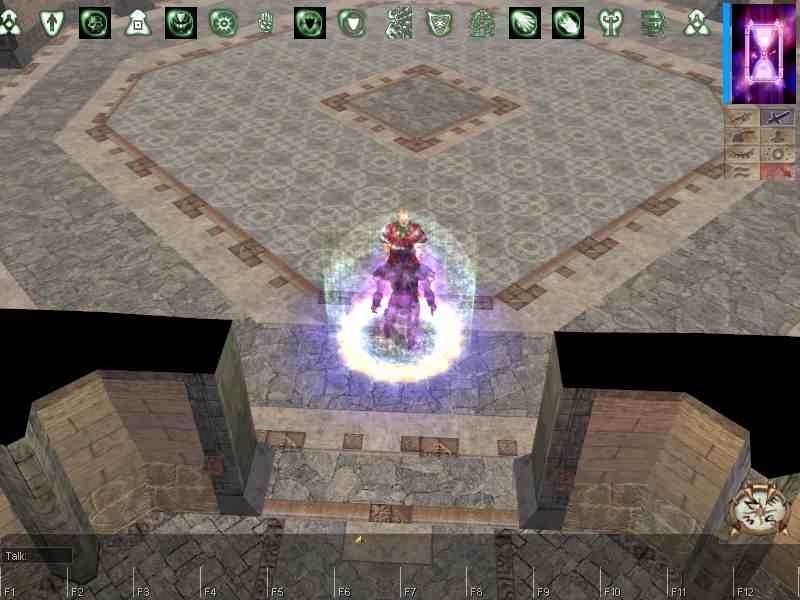
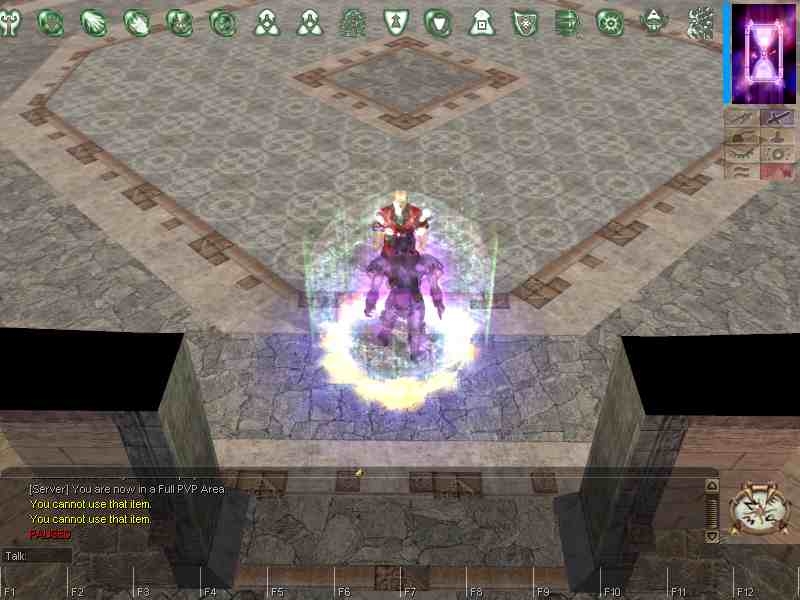
My altered version of Mordaedil's to work with the GUI. Not perfect, but should do for the most. Looks even better on darker background. And if you don't like, just follow the instructions I gave and you can do your own, hooray!
Right-o. Let me have a look at doing some screenshots in-game (screenshots out of game with a dark background would show them exactly like Mordaedil's).





 Site
Site









 at 2010-12-11 15:22:40


