========================================
Kornstalx's HotKeys for NWN2
(v1.05, 05/12/08)
(v1.05a, 05/18/08)
========================================
Ask any avid NWN2 player, and I'm pretty sure most of them will agree with you when you say the default camera controls for the game are very, well... "un-intuitive". I've played the game off and on since release, and every time I fire it up I'm immediately frustrated by the lack of customization allowed. Shortly after the game came out, Bluechipps (from the NWN2 forums) made a short AHK script that switched the mouse controls around in an attempt to make things more "WoW-like". Even using his program, coupled with making custom changes in my mouse's software, I've always felt that more could be done.
This program started off as a simple pet-project for myself and friends, but eventually added so much functionality that I decided it was probably worth sharing. I have deliberately not assigned any features to the mouse thumb button(s), because not everyone has a 4+ button mouse. You can, however, still use those extra buttons with the game's built-in keymap.
*THIS PROGRAM DOES NOT MODIFY NOR ALTER THE NWN2 GAME FILES IN ANY WAY*
This application uses an upper-level keyboard hook to simulate keystrokes/mouseclicks assigned to different hotkey combinations. It would have been much simpler to design this application to read the game's .ini files and make the appropriate key-changes automatically, but I have gone out of my way to avoid doing so for various (including legal) reasons.
As a result, you must pay close attention to the instructions below to ensure that any custom keybinds you may have changed/added in the game do not create conflicts.
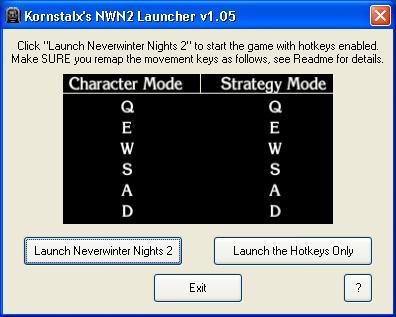
None. Simply run the application and follow the on-screen directions. Pay close attention to the mandatory key-bindings. If you have customized your hotkeys with the in-game Keybinding section, some features will not work (or work undesirably) as noted in the 'Features' list below.
At the very least, the movement keys *MUST* be rebound in-game as shown in the diagram when you start this program. Failure to do so will cause all sorts of navigational problems :)
To uninstall Kornstalx's HotKeys, simply delete the file.
=============================
Features Added for 1.05a:
=============================
- Added an autorun feature. Double-tapping W key will now put your character in auto-run. To stop, press and release W, or simply press S.
- At the request of a few people on the Bioware forums I've added "Toggle Walk" functionality. Understand, though, that I do not officially support this feature as it was quite a head-ache to implement without creating issues. By default, holding down shift makes your character walk. This 1.05a addendum will allow you to use the CapsLock key to force shift to remain held down, by toggling it on and off. However this method created many issues within the game, such as:
1) Clicking on an object or character to interact with it would automatically exit walk mode
2) Clicking on a party member's portrait would do nothing in character cam mode, and performed a shift+click in strategy mode (group add)
3) Clicking on a target (Middle Mouse) instantly popped the dropdown menu
4) Scrolling the mouse wheel while walking would not zoom (cycles hotbars instead)
5) While chatting shift key would still be held down (YOU WOULD TALK LIKE THIS) :)
All of the above issues cannot be resolved by me until Obsidian changes the 'walk' key. Why they chose "Shift" for walking (when it's already used by so many other game functions) is beyond my control. As a result, I added code that will automatically drop you *OUT* of walk mode when performing the following actions:
4) Scrolling the mouse wheel
5) Pressing Enter to chat (or pressing Escape to cancel chat)
Understand, however, that the other issues listed above still persist. I highly recommend using the game's 'Detect' or 'Tracking' modes to emulate walking instead when you can, to avoid those problems.
- When in Character Camera mode and holding down the left mouse button to "drive" your character, the turn/strafe movement keys will automatically switch (ie, the a key no longer turns left, it will become q and strafe left instead), until you release "drive" mode. This allows you to go from "WoW-style" movement to NWN1 style movement without having to change out of the Character Camera mode.
- Right Mouse and Middle Mouse have been switched. Right mouse is now "Free Look", and Middle mouse now targets/untargets. Holding down Middle Mouse will also popup the game's dropdown menu, according to the delay you set in the game's settings. Note that you can also instantly bring up the dropdown menu by pressing Shift + Middle Mouse.
- Holding down Tab now performs the "default action" on your current target. This allows you to press tab to cycle through available targets (assuming you haven't rebound your targetting keys), then press and HOLD tab briefly to automatically perform the default action on that target. This greatly helps prevent misclicks when in close combat. Note that for this to work, you *MUST* bind NumPad Enter to "Perform Default Action on Target" in the NWN2 in-game key settings.
- Left Alt now toggles "Inspection" on and off. This allows you to keep all objects highlighted without having to hold down the awkward z key. For this to work, you *MUST* keep the default "Inspection" key in the NWN2 in-game key settings (default z). Note this feature does not interfere with in game-chatting in any way.
- Pressing Left Ctrl by itself will now change Camera Modes. For this to work, you *MUST* keep the default "Toggle Play Mode" key in the in-game key settings (default is the * key).
- Left Windows Key has been disabled. No more accidental Alt-Tabs :)
- ScrollLock manually enables/disables the hotkeys. You will hear an audible beep, and the ScrollLock keyboard light will reflect the program's current state (off == disabled). Note that the hotkeys are automatically paused when not in-game, however you may still manually disable them if so desired (through ScrollLock, or double-click the tray icon).
- Exiting NWN2 will automatically close Kornstalx's HotKeys, as well.
========================================
Known Issues/Workarounds:
========================================
- While walking around everywhere with the "Inspection" key permanently toggled on sounds like a great idea, understand that the NWN2 Engine does not always highlight creatures/objects that suddenly come into existence (by trigger/random encounter, for example). After the creature or object spawns, however, "Inspection" will always highlight it (if your character can see it). This has nothing to do with Kornstalx's Hotkeys, and is true even if you simply held the z key down indefinitely.
- There is random bug in the NWN2 Engine that crops up when you mix rapid "Click-to-Move" orders with manual WASD movement. I cannot seem to isolate the direct cause, but sometimes when you give click-move orders, immediately followed by keypress movement, the keyboard will stop responding. Switching camera modes rapidly seems to make it appear more often. If this ever happens, press and hold Middle Mouse (so that the drop-down menu pops up) and it will fix the issue. Alt-tabbing also seems to correct the problem.
- This application been tested to work in conjunction with Logitech Setpoint v4.4 ONLY. If you encounter weird issues with keys not working or perhaps sticking, try exiting your 3rd-party mouse software and see if that remedies the problem before sending a bug report.
- This application has only briefly been tested on Windows Vista. I encountered no issues, but have not delved into debugging it thoroughly (yet, anyway).
I really want this mod but I have the Steam version of this game. When I run the file it says the game is not installed. Is there a way to make this work with the Steam version that stores the files under "Steam\...."?
interesting idea, I'll give it a go. Just wanted to add that the non-responsive keyboard bug (which I seem to get a lot) is also remedied by opening the console -- seems the ~ key isn't afflicted like the others are. quicker than the alt-tab option
~overground
You must be Logged In to post comments in this section.
10 - A Masterpiece, Genuinely Groundbreaking 9 - Outstanding, a Must Have 8 - Excellent, Recommended to Anyone 7 - Very Good, Deserves a Look 6 - Good, Qualified Recommendation 5 - Fair, Solid yet Unremarkable 4 - Some Merit, Requires Improvements 3 - Poor Execution, Potential Unrealized 2 - Very Little Appeal 1 - Not Recommended to Anyone




 Site
Site







 at 2012-10-11 14:32:48


