The Usability Tools plugin aims to add additional basic functionality to the toolset, allowing you to be more productive
and -- hopefully -- work with it in a way that's more intuitive. In short, it tries to make it more... well, usable, in ways both small and large. Special thanks goes to...
Electrocutor - for showing me how to use the Table layout, which in turn allowed me to fix a couple of long-standing appearance bugs.
Thoronen - for the idea which brought this plugin into existence
kivinen for the suggestion of providing useful context menus which were added in 1.04.02.
Ovocean for most of the icons now in use, and for his invaluable help with the additional features which will be getting added soon :)
Laban for the idea of ctrl+mousewheel for scaling placed instances, added in 1.11.01
Hellcow for suggestion visual effect previews which were added in 1.11.02
the people of #nwn2cr for listening to my aimless, endless rambles about this thing for the last week while I finished the Resource Manager component
Usage and Features
When in an area viewer, you can now use the following key combinations, without
having to first switch over the terrain tab.
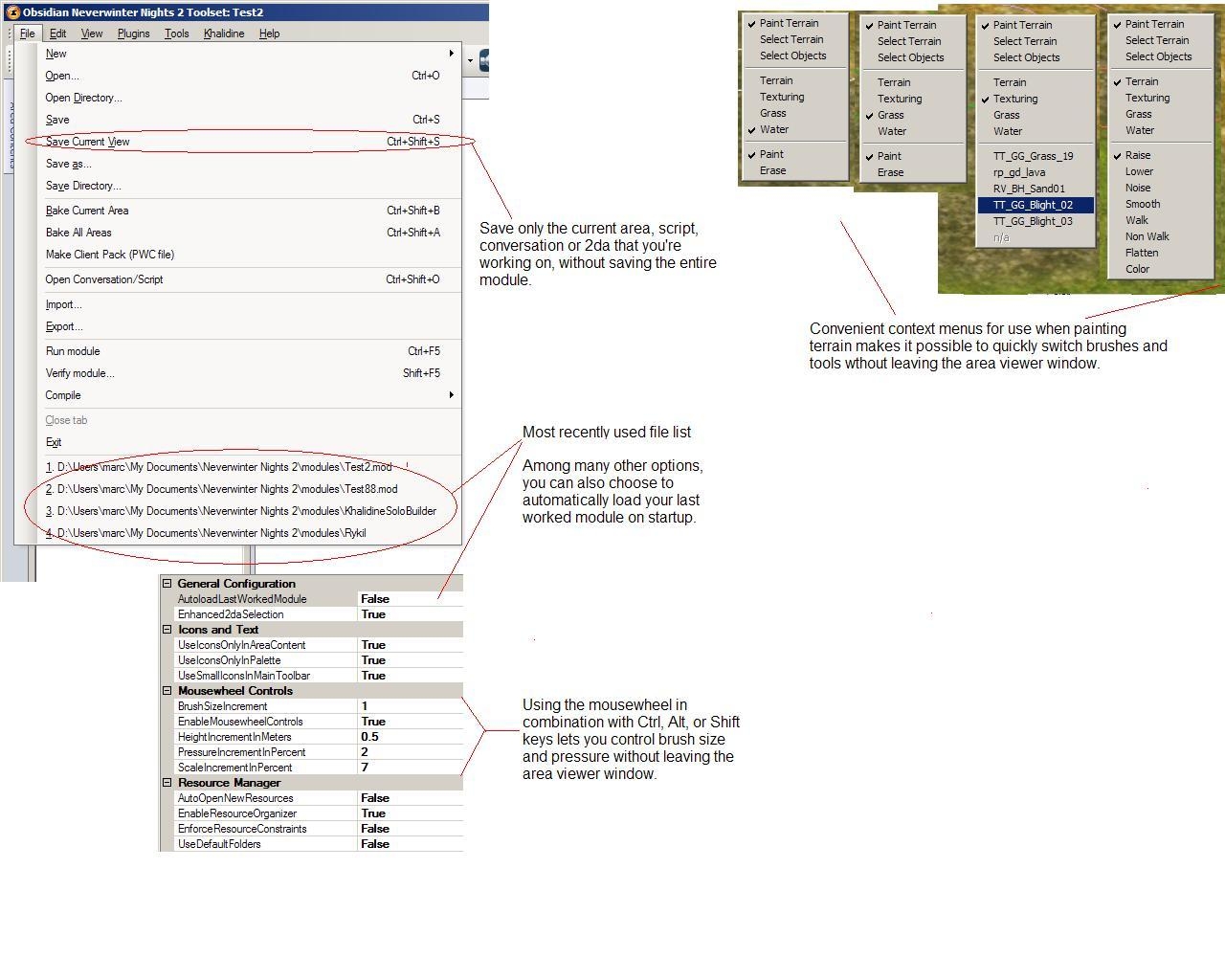
Alt + Mousewheel: Increase or decrease the inner brush size
Shift + Mousewheel : Increase or decrease the outer brush size
Ctrl + Mousewheel
If using pressure brushes, increase or decrease the amount of pressure
If using water/flatten brushes, increase/decrease the height
If using grass brush, increase/decrease density
NEW: if an object is selected (in Select Object mode) that object will be scaled.
Right-clicking in the area viewer while in select/paint terrain mode gives you a context menu with options relevant to the current brush.
save current area/file/script/2da/dialog only, without saving the entire module. This is
available through File -> Save Current View (Ctrl + Shift +S). This will save whatever
tab is active in the toolset. This is also reduces the risk of errors and
crashes while saving, since this means that every single blueprint in your module is not
getting re-written to disk every time you want to save a minor change.
To prevent possible confusion and the appearance of lost data, this only
works when your module is saved in Directory Mode.
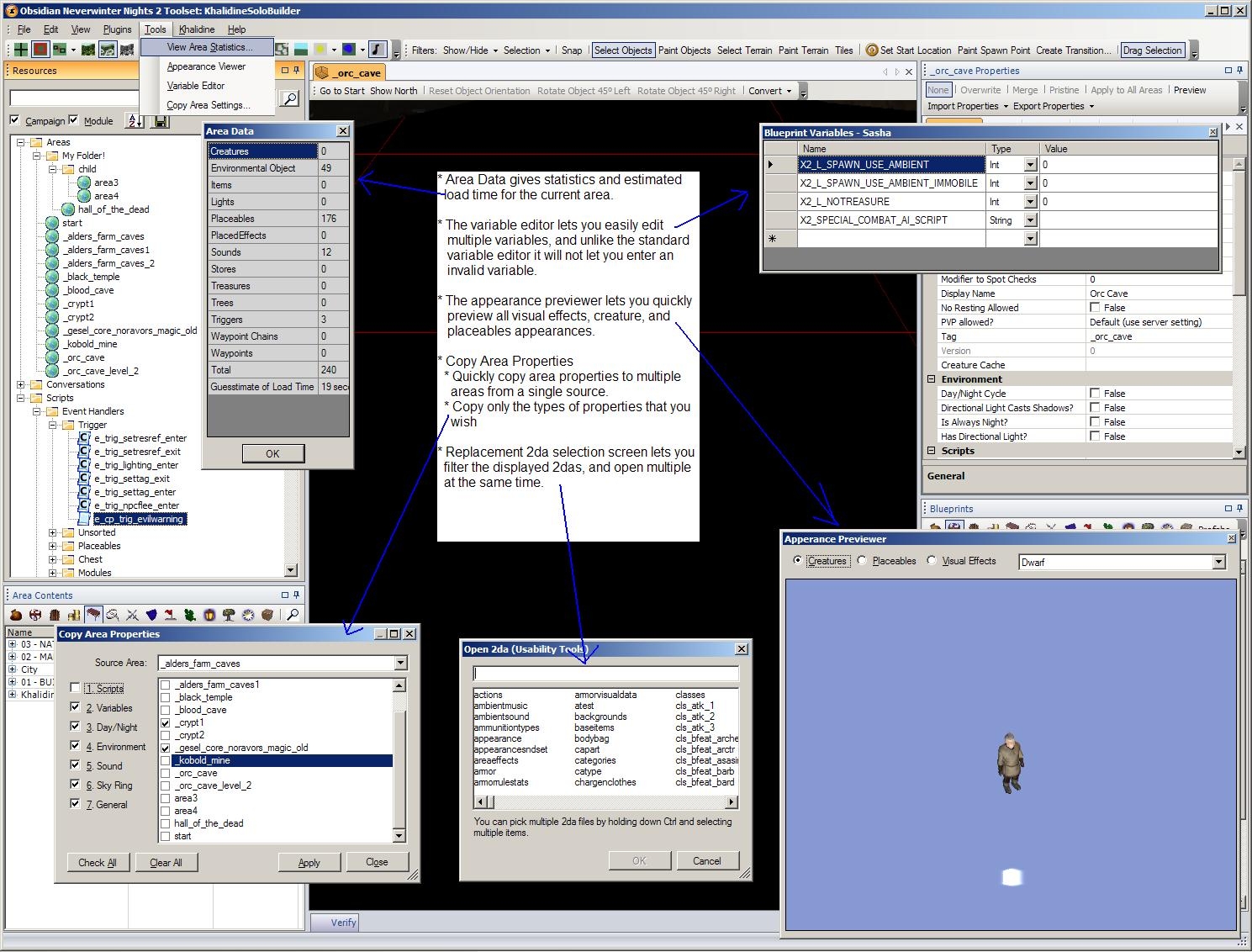
All creature, placeable appearances, and now placed visual effects can be viewed by
choosing the menu option, "View -> Appearance Viewer".
A replacement for the standard variable editor is now available via "View -> Variables".
It offers many advantages over the standard one including more intuitive interface,
non-modal, and unlike the default variable editor it will not let you add values
that render a module or area unopenable in the toolset. Once opened the variable editor
will always reflect the variables on your currently selected instance or blueprint,
assuming what you have selected supports variables. It does not yet allow editing
variables of multiple objects at once.
Current Area Statistics can be viewed by choosing View -> Area Statistics. This gives you
total numbers of different object types in the current area, and attempts to give
a VERY rough estimate of load time over a broadband connection. The formula for
this is still being revised and will hopefully get more accurate over time.
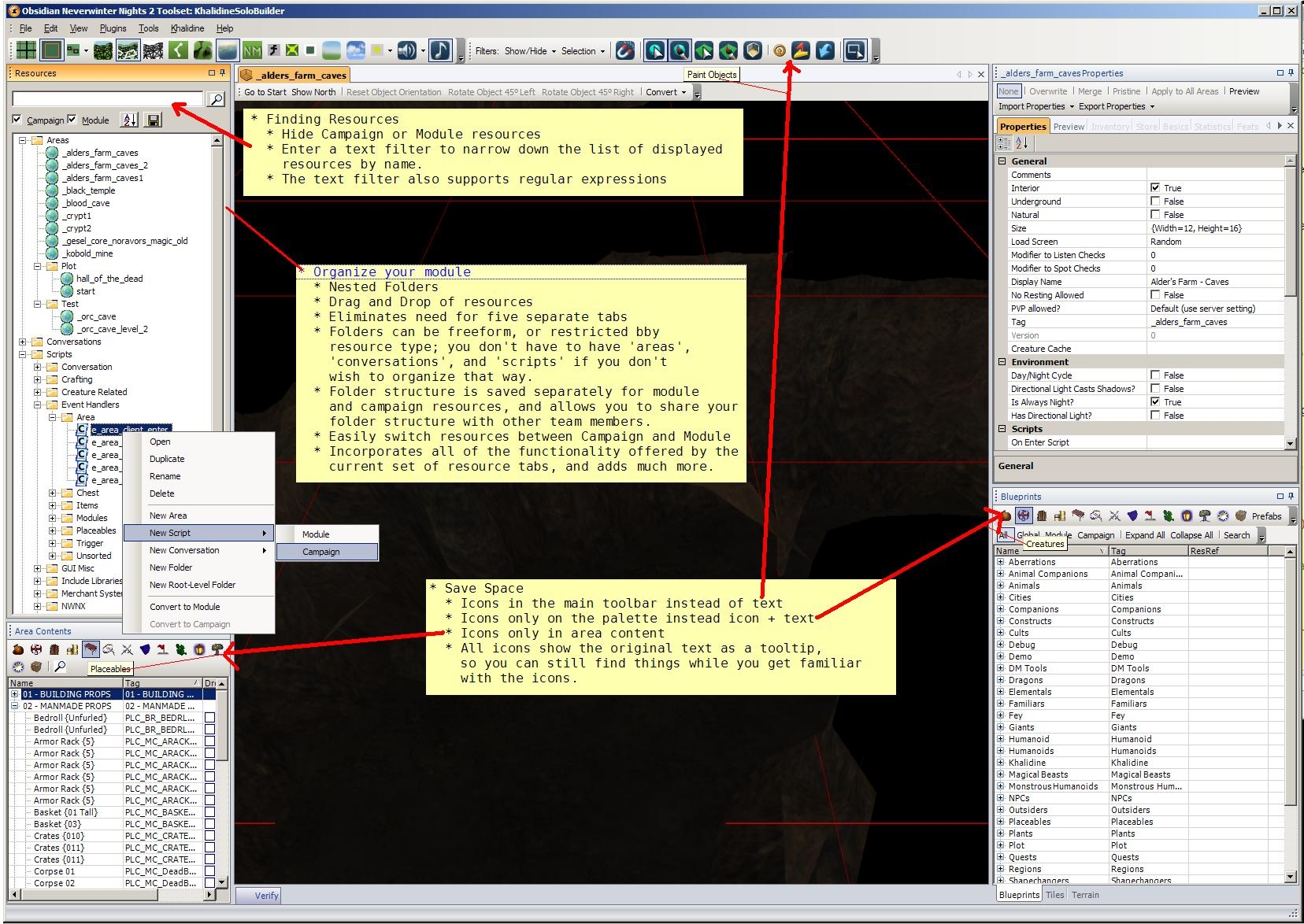
By enabling the UseSmallIcons option in Preferences (View -> Options -> Plugins -> USability Tools)
one of the standard toolbars will have icons substituted for text. This saves a lot of
"screen real estate" for those who need it.
Ctrl+Shift+S to save only the current area, script, 2da, or conversation without having to save
the entire module.
Resource manager gives you full control to organize all of your scripts, areas
and dialogs in the way that you want. Use subfolders, drag and drop organization, filter
displayed resources, and many more options. This completely replaces the five separate tabs previously
used for this, and adds considerably more functionality.
You can now remove the text from the toolbars on the palette and area content lists,
instead showing icons only.
Auto reload the last loaded module on startup; the most recent four modules are also now
available on the start menu.
A 2da chooser which lets you open multiple 2das at once, and perform filtering/matching
on the full 2da list to quickly find what you need.
Area property copy tool, which allows you to selectively copy properties from one area to
multiple other areas.
This is the most recent version of the plugin, for use with toolset build 1.0.1765 (patch 1.23). Please see the external link to access older versions.
10 - A Masterpiece, Genuinely Groundbreaking 9 - Outstanding, a Must Have 8 - Excellent, Recommended to Anyone 7 - Very Good, Deserves a Look 6 - Good, Qualified Recommendation 5 - Fair, Solid yet Unremarkable 4 - Some Merit, Requires Improvements 3 - Poor Execution, Potential Unrealized 2 - Very Little Appeal 1 - Not Recommended to Anyone






 Site
Site