Welcome to NickD's Awesome Server Tracking Information tool, version 1.2!
Installation
============
Copy the NASTI.exe file to any folder. If you are using the sample copy of the ServerList.txt and Settings.txt files, they must be placed in the same folder as the application executable. Otherwise a blank ServerList.txt and a default Settings.txt file will be created when the application is first run.
This application requires the .NET 2.0 framework and an internet connection to work. It does not need to be run on the same computer as Neverwinter Nights is installed on, but will not be able to launch either version of Neverwinter Nights if it is not.
NickD's Awesome Server Tracking Information
===========================================
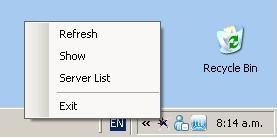
The application will run invisibly, with an icon appearing in the notification tray after the server list is first loaded and refreshed. The time it will take to load depends on the number of servers in the list, the speed it reads the online servers and the number of offline servers in the list.
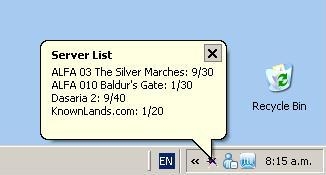
The server list can be displayed in a popup balloon by right clicking on the notification tray icon and selecting the Server List menu option. This will display the servers and their status. Only the first 255 characters will be displayed in this way, so only about 7 to 10 servers will be displayed. The order of the list depends on how the list is currently sorted, with the default order being the order they are in the Server List edit screen.
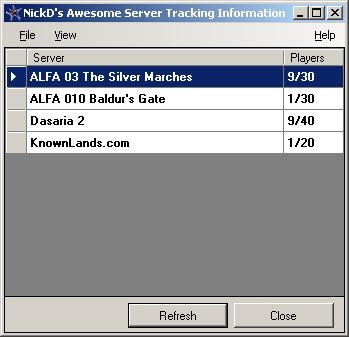
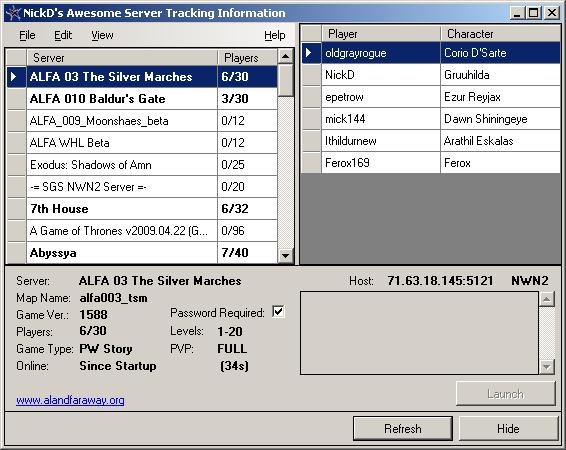
Alternatively the list can be displayed on the screen either by right clicking on the notification tray icon and selecting the Show menu option or double clickin on the notification tray icon. The screen itself contains the full list of servers in the top left grid and information about the currently selected server at the bottom. The grid on the right is for the player list. The player list is not automatic and needs to be set up online and linked to within the Edit Server List screen. To hide the screen again, either minimise the screen, click on the Hide button or select the Hide menu option from the notification tray icon menu.
To close the application completely, either select the Exit menu item from the screen File menu or notification tray icon menu or click on the x button at the top right of the screen.
To refresh the list manually, click on the Refresh button on the screen or select Refresh from the menu. Otherwise the list will automatically refresh periodically, as set up in the Edit Settings screen (defaulted to 5 minutes). Hovering your mouse pointer over the Refresh button will pop up a tool tip informing you of when the last refresh occured.
The server details section at the bottom of the screen contains relevant information about the server as extracted from the server itself. It also contains additional information as set up in the Edit Server List screen for each server. The Online/Offline value is the time the server went offline or came online. This will be set to Since Startup if the status of the server hasn't changed since the application was started. Hovering your mouse pointer over the time online/offline will pop up a tool tip informing you of when the application was started. Next to the time online/offline is the amount of time the server has been online or offline. If the status hasn't changed since startup, this will only be the amount of time since the application was started. The link at the bottom right is maintainable in the Edit Server List screen. This is a hyperlink, using whichever browser is set as the browser in the Edit Settings screen (default Internet Explorer). The Launch button will perform a direct connect to the server. This will only work for NWN1 servers that are online and if NWN1 is installed on the machine.
If a server has a player list set up, the player list can be displayed in 3 different formats, depending on how the server has decided to define their online player information. The preferred method is for servers to make available the information in a predefined format (PLEASE CONTACT ME FOR MORE INFORMATION IF REQUIRED). Other options are a custom list if a server would like to display information in a different format and a website, which links directly to a webpage.
Menu
====
File:
Under the file menu is a Launch submenu, from which NWN1 and NWN2 can be launched if they are installed. These options will just launch the games, not the currently selected server.
Edit:
This menu is where the edit screens for the application are opened from.
Edit Server List
----------------
This screen contains the servers' set up information. To add a new server to the list, select New (Ctrl-N) from the File menu. To delete and existing server from the list, select Delete (Ctrl-D) from the File menu. To edit a server already in the list, make the changes in the details section and click on Save (Ctrl-S). The server list loads in the order that they appear in the Edit Server List screen. To re-order the list, use the up and down arrows to the right of the list on this screen.
* IP Address: This is the IP Address of the server.
* Port: This is the port of the server. Entering the IP Address and Port and clicking on the Test button will check if the server is online and inform the user. If the server is online and the Server Name is blank, it will put the name of the server in the Server Name box.
* Server Name: This is the default name of the server. If the server is offline in the server list, this is the name that will be displayed.
* NWN Version: This is used to determine if the server is a NWN1 or NWN2 server.
* Website: This allows the user to put a website link in the server details.
* Player List: This is the location of the player list. This will be an online text file or a website.
* Player List Type: This determines what format the player list is in.
Edit Settings
-------------
This screen contains three options for settings that apply to the application.
* Auto Popups: This determines what kind of automatic popups appear in the balloon popup when the server list is refreshed. This is defaulted to None.
* Refresh Rate: This determines the amount of time (in minutes) between each automatic update.
* Browser: This determines which browser to use within the application. Right clicking on the box will pop up a context menu of browsers. If the browser required is neither Internet Explorer or Firefox, then the broswer application can be selected with the Find menu option.
View:
This menu contains options to perform a manual refresh, slim the application, so only the server list is displayed and reload the server list. Reloading the server list is only useful if editing the server list and settings files by hand. Editing the files through the edit screens will automatically update the application.
Notes
=====
* The more servers held in the server list, the slower the initial load and the refresh will be. That, in conjunction with the limited space for the Server List popup, it is recommended that no more than a dozen servers are tracked with this tool, although there is no enforced limit.
* I am always open to more suggestions.
Known Issues
============
* The Balloon Text can only be 255 characters long. This means only around 7 to 10 (depending on the length of the server names) servers being tracked will be displayed in the server list popup balloon.
* The ServerList.txt file will cause problems if it cannot resolve a line. i.e., your line must have 3 pipe characters (|) in it or start with "--", and there cannot be any blank lines. Because of this, it is now much better to use the edit screen than trying to manually edit the ServerList.txt file.
* WebPage refresh.
Future Releases
===============
* Favourite players
* Server List filters
* Better validation and error checking
* Disable servers (an alternative to deleting)
* Help File
Currently Deemed Impossible
===========================
* Getting the player list from the server itself.
* Performing a direct connect to a NWN2 server via command line parameters.
Dismissed Ideas
===============
* Direct connection to a database to determine players online. While this would make the player list more real time, it could very easily kill a database.
* Emailling alerts to users. This could easily get far too spammy.
* I am not currently considering doing a web version of this application.
A new version is up. I put together a new sample serverlist.txt file in the zip file. There are 50 of them there, so it can take a good 20 seconds to load up and refresh. If you decide to use this new serverlist, I'd recommend deleting the servers you are not interested in, in order to speed up the refresh.
1.2 * Added additional information to the Server Details panel, including when the server went online/offline and how long it has been online or offline and a hyperlink to the website, as set up in Edit Server List screen.
* Implemented the player list panel with Player List, Customer List and Website options.
* Added a launch button for NWN1 servers.
* Added launch menu options from both NWN1 and NWN2
* Added edit screens for the Server List and Settings.
* Added a link to the NASTI NWN Vault page on the About box.
* Changed the Close button to a Hide button, so it now minimises the application rather than closing it.
For information on setting up a player list, please check out the Forum thread link. To see samples, look at the two top ALFA servers in the list for a player list setup and the Abyssya server for a sample of a website based player list.
That was strange... For some reason the latest file didn't appear to be uploaded correctly, so some people were downloading the older version, even though it looked like it had worked to me.
I have re-uploaded, including all the files in a single zip file. Hopefully it should now work. Check the Help>About box for the version number and let me know if there is still a problem, please.
The above error was fixed in 1.1, but there is still a bug where an error will be displayed if the server list menu option is selected when there are no servers set up.
Very cool. If you run it without the txt file, though, it crashes on startup:
System.ArgumentOutOfRangeException: Index was out of range. Must be non-negative and less than the size of the collection.
Parameter name: index
at System.Collections.ArrayList.get_Item(Int32 index)
at System.Windows.Forms.DataGridViewSelectedRowCollection.get_Item(Int32 index)
at GSServerList.Main.RefreshDetails()
at GSServerList.Main.RefreshList()
at GSServerList.Main.Main_Shown(Object sender, EventArgs e)
at System.Windows.Forms.Form.OnShown(EventArgs e)
at System.Windows.Forms.Form.CallShownEvent()
at System.Windows.Forms.Control.InvokeMarshaledCallbackDo(ThreadMethodEntry tme)
at System.Windows.Forms.Control.InvokeMarshaledCallbackHelper(Object obj)
at System.Threading.ExecutionContext.runTryCode(Object userData)
at System.Runtime.CompilerServices.RuntimeHelpers.ExecuteCodeWithGuaranteedCleanup(
TryCode code, CleanupCode backoutCode, Object userData)
at System.Threading.ExecutionContext.RunInternal(ExecutionContext executionContext, ContextCallback callback, Object state)
at System.Threading.ExecutionContext.Run(ExecutionContext executionContext, ContextCallback callback, Object state)
at System.Windows.Forms.Control.InvokeMarshaledCallback(ThreadMethodEntry tme)
at System.Windows.Forms.Control.InvokeMarshaledCallbacks()
)
Might be worth adding a quick sanity check to ensure that the file is present.
Version 1.1 is now available. If you've already downloaded this program, you only need to copy the new NASTI.exe file over your old NASTI.exe file.
* Fixed a bug that stopped the program working on servers on any port other that 5121.
* When the program is first run, it will now create a file named Settings.txt. This file contains one line, defaulted to 0|5. The first number is to indicate what automatic popups occur, the second number is the number of minutes between automatic refreshes.
* Added a Reload option to the View menu. This will reload the ServerList.txt and Settings.txt files, so the user does not need to restart the program after the files are changed.
* Added a Slim option to the View menu. This will hide the right and detail panels and reduce the width of the application. This creates a less intrusive window for users who would prefer to have the list up on screen instead of relying on the notification popup balloons.
* Added the IP Address, Port, Game Type and PVP to the Server details section. These cover the main server settings I personally look at. I will be happy to review any other details that people would like to be displayed.
* It now handles the refreshing of the popup balloons much better now.
* Various aesthetic changes, such as size changes, transparent icons, etc.
Posted by Qkrch at 2009-04-15 04:50:09 Voted 8.25 on 04/15/09
Nice tool, looking for improvements.. such as an input to manage the txt file or even to generate code for html websites (that would be amazing)
Keep up this needed work :) _________________________ The Ancient NWN Spanish Community Link
Academy for Modding Excellence Link
The Everfire Forge, a weapon for your hero Link
Posted by Arminath at 2009-04-14 17:02:10 Voted 9.00 on 04/14/09
This is a good, solid and most importantly SIMPLE to use. Playing both NWN and NWN2 and being able to see both sets of servers on a single list makes this an even better program. I can't wait to see how you improve on it.
Posted by bartleby12804 at 2009-04-14 06:59:25 Voted 9.50 on 04/14/09
Very usefull tool awsome idea its a pain to have to load up the game just to see if anyone is online.
Posted by Rotku_ at 2009-04-13 21:39:29 Voted 9.00 on 04/13/09
Impressive work there, Nick. Certainly a useful tool.
You must be Logged In to post comments in this section.
10 - A Masterpiece, Genuinely Groundbreaking 9 - Outstanding, a Must Have 8 - Excellent, Recommended to Anyone 7 - Very Good, Deserves a Look 6 - Good, Qualified Recommendation 5 - Fair, Solid yet Unremarkable 4 - Some Merit, Requires Improvements 3 - Poor Execution, Potential Unrealized 2 - Very Little Appeal 1 - Not Recommended to Anyone






 Site
Site









 at 2009-05-10 04:15:29


