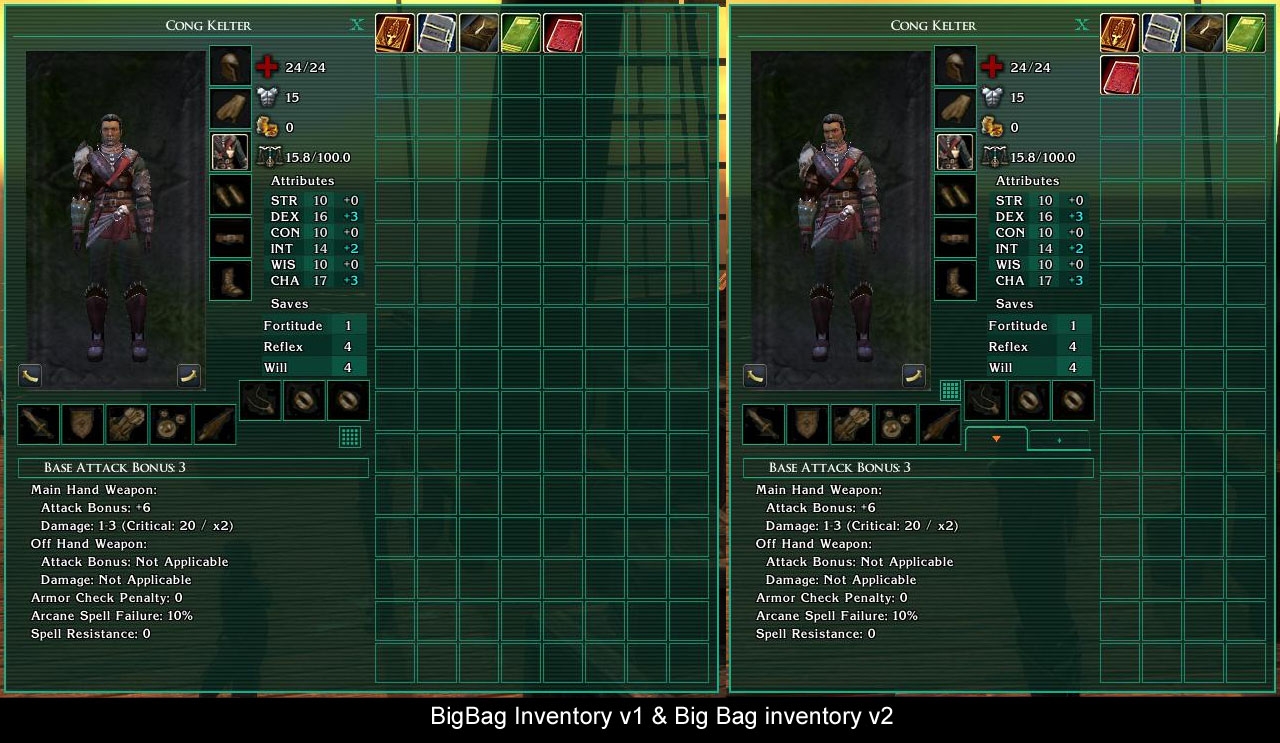
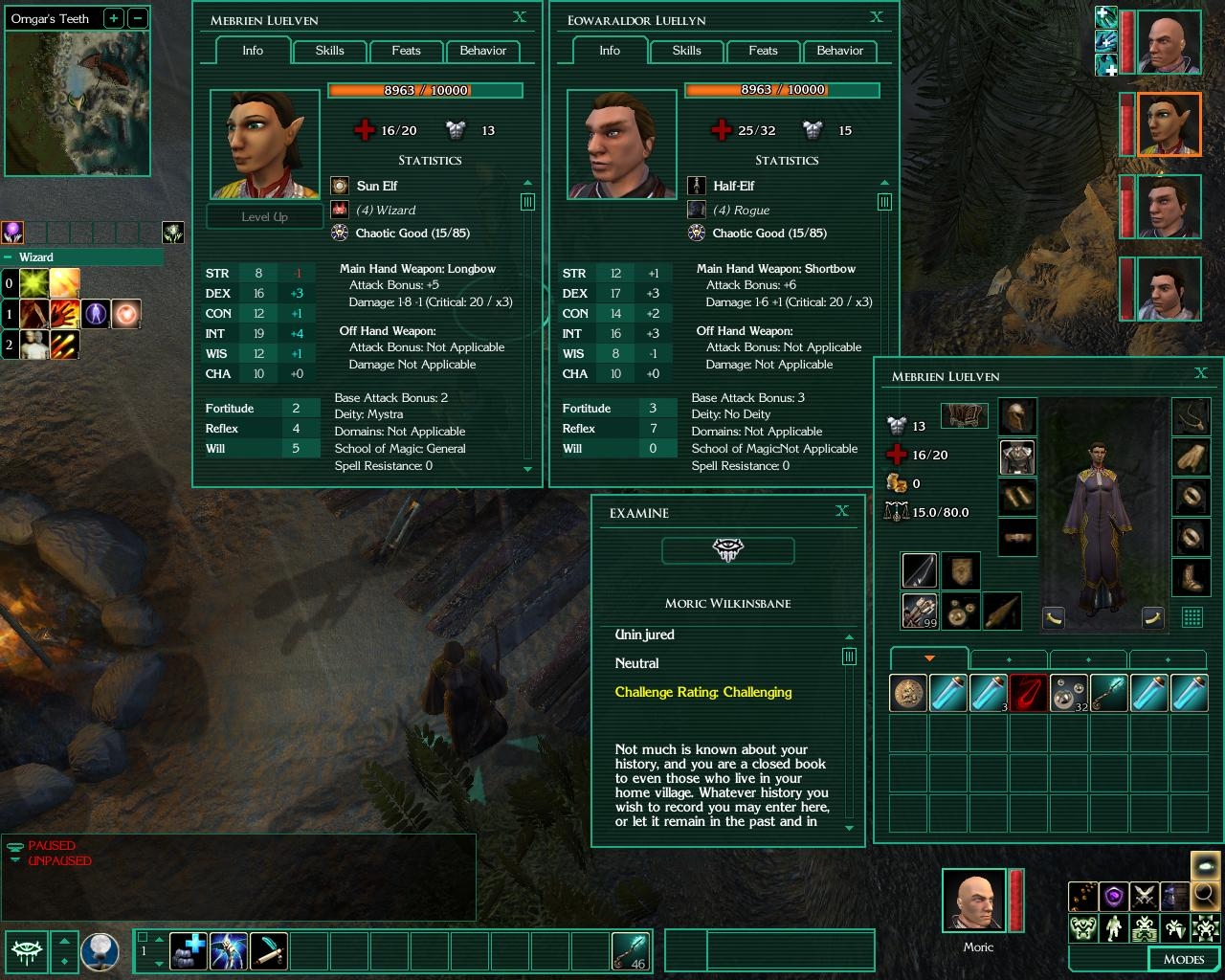
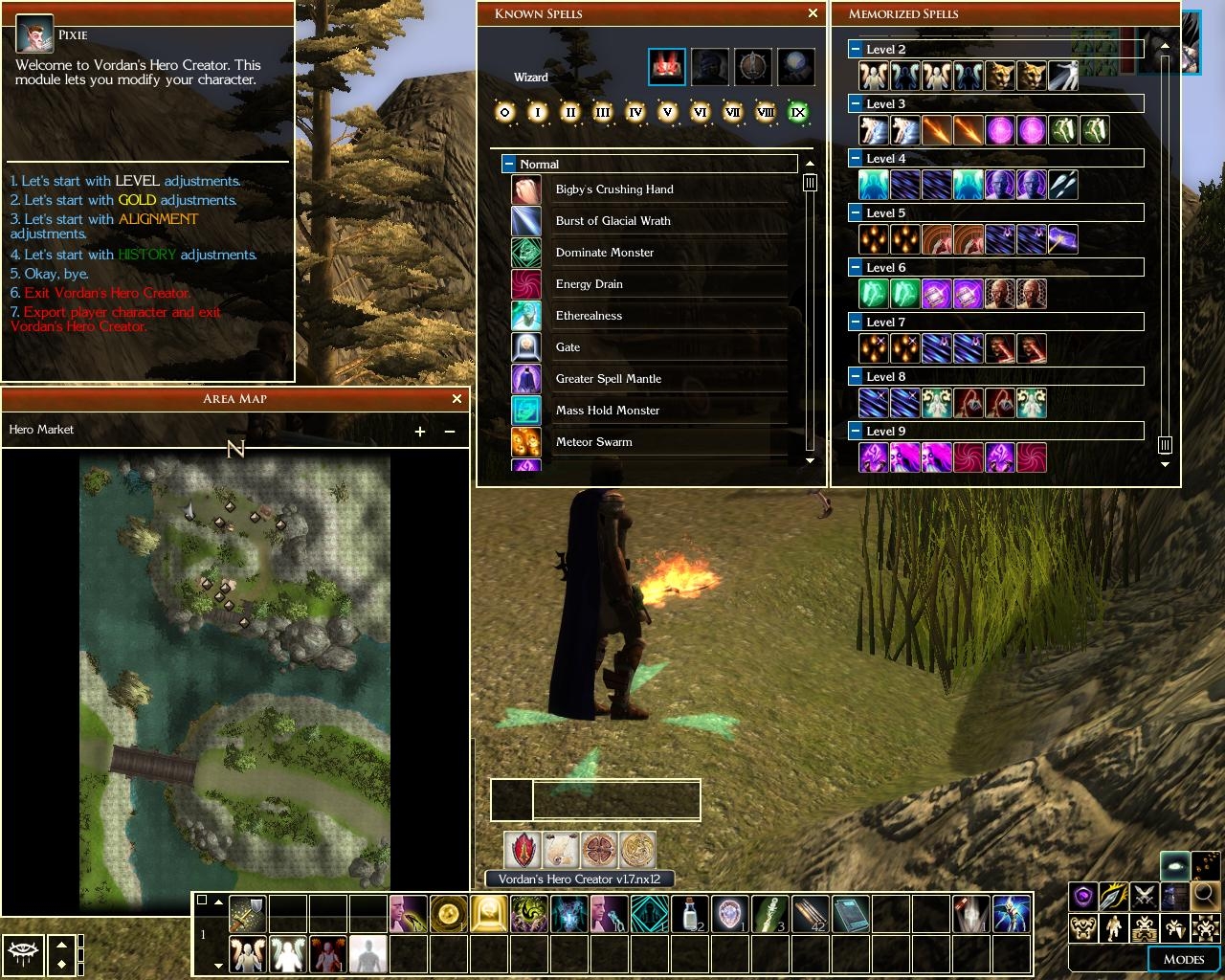
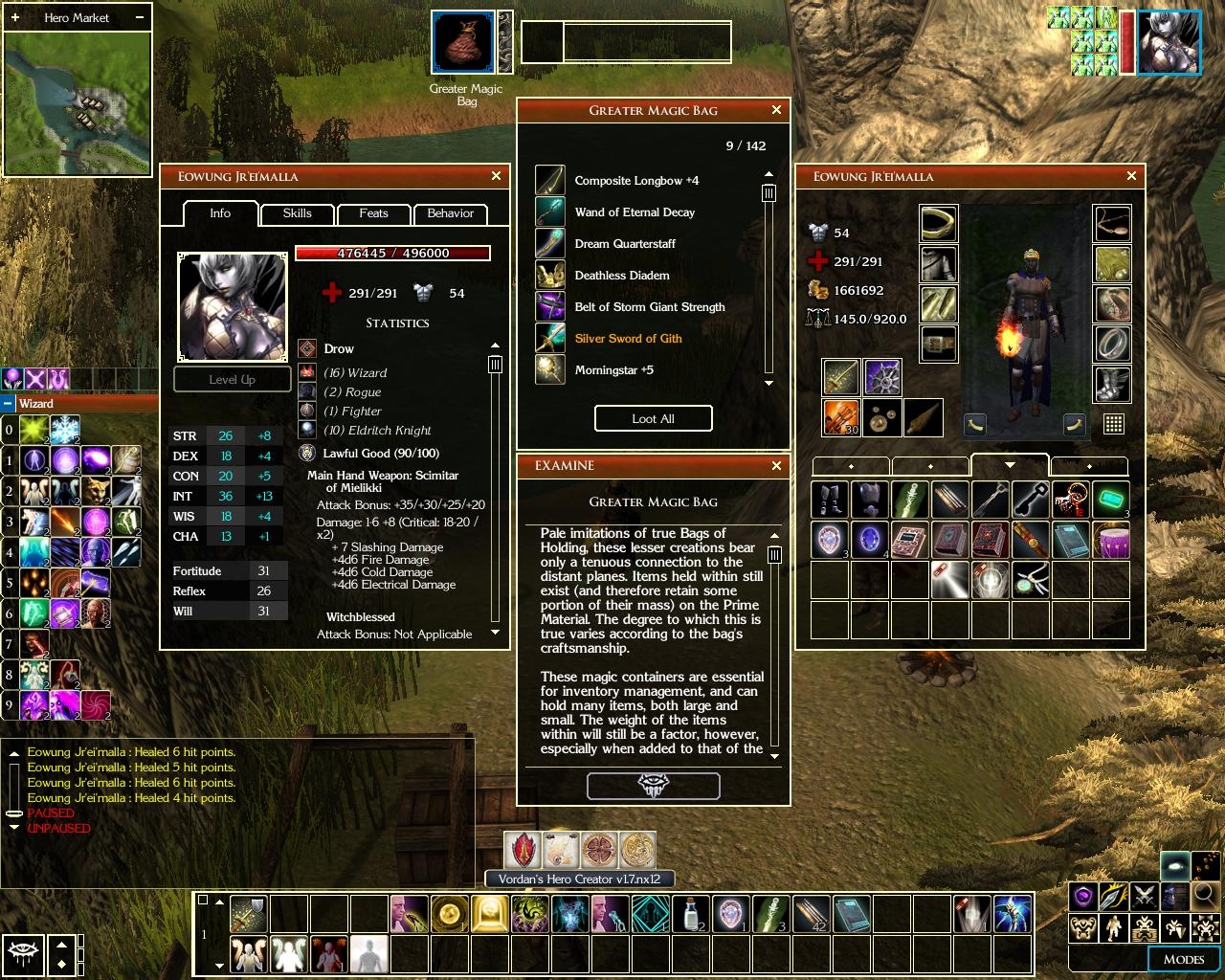
It all started out as a desire to compile all the various gui tweaks i was using into one (xUI, Slate's Tiny Spell book, Cyricc Compact Character Stats, Gaoneng Player's Handbook etc). I play in 1024 res and the default layout just takes too much space. I really loved the Baldur's Gate UI by Trevor Morris, but it took up even more space. Then I thought of modifying a few things myself...
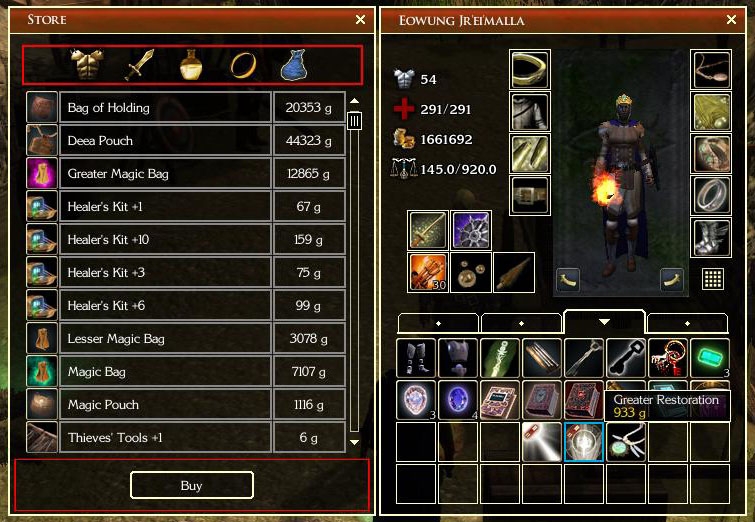
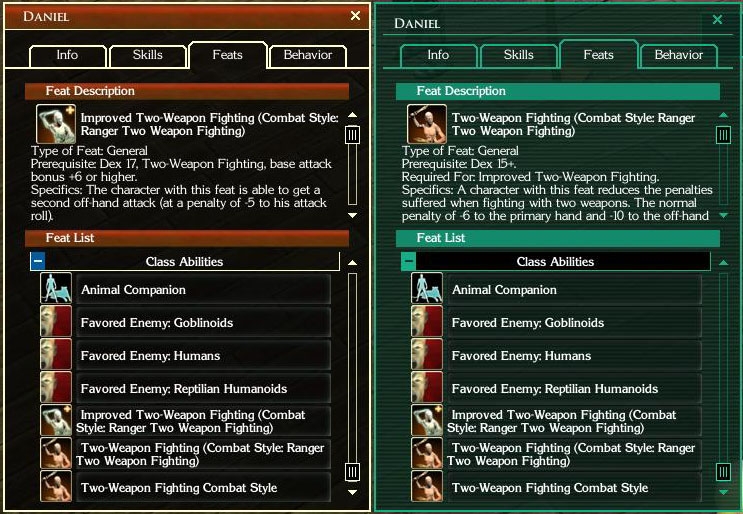
These are the changes to the default GUI (I tried to make the panels of uniform size and look - thin borders, transparent black background, smaller buttons, smaller scrollbars etc):
- Character Screen reduced in size to be the same as inventory screen. Changed background, smaller fonts with no outline (much clearer with the black background)...
- Changed the look of the Inventory
- Resized Known Spells and Memorized Spells to be the same size as the Inventory, changed look, replaced spell level icons with the ones from NWN1
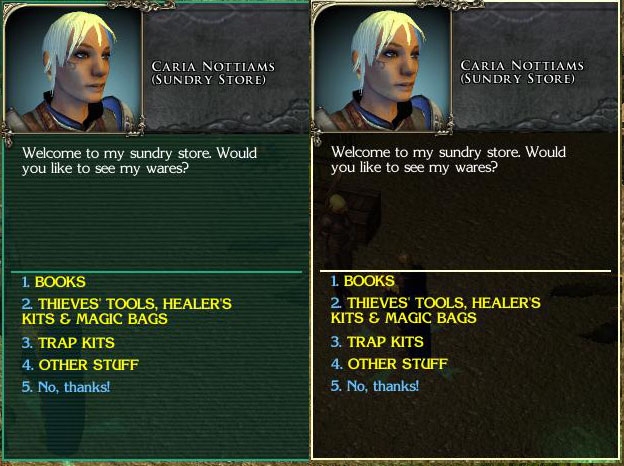
- Resized Store, Barter Screens, changed look...
- Changed Quick Cast drop-down menu and Metadata Grid and look
- Mini Map changed a lot (square minimap) and Area Map changed just a little bit (not much that can be done there)
- Smaller Party Bar
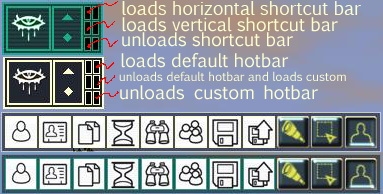
- Added Command bar options in the Mode Bar with the NWN1 Icons
- Changed the look of Hotbar, Action Queue, Target Enemy, Target Friend, Player Menu, Voice Menu, Journal
- changed the loading bar in Load Area and Load Module Screens
(15.08.2007)
****************************************
THANKS:
My sincere thanks goes out to XiDragon for allowing me to use and modify his code to create and give functionality to SlimGUI options screen. XiDragon's (xUI) has been an inspiration to me to make my own UI improvements.
This changes the size of the portrait in the chat window (take a look at the screenshot). To install extract to the override folder. Delete quickchat.xml from "ui\custom\slimgui folder". Can be used for both themes. NOTE: I will not be adding this to the installer, so it will remain a separate download.
Non Installer version of SlimGUI. With changes from v2.76 installation got a bit more complicated, but detailed instruction are inside. If you have any problem please contact me.
The package contains SlimGUI for the following versions of NWN2 (Both Gold and Green Themes) NWN2 v1.23 (OC, MotB)
NWN2 v1.23 (OC, MotB) with Compmonai v2.2
Storm of Zehir v1.23
Storm of Zehir v1.23 with Compmonai v2.2
Also included are extras:
Small Inventory
Big Bag Inventory v1
Big Bag Inventory v2
Warlock Buddy
Small Party Bar
From v2.76 Custom Hotbars with or without Options Screen are separated into various packages. Custom Hotbars install ALL of hotbars and an Options Screen to change them at will. Also are included separate hotbars witch replace hotbar.xml installed with basic SlimGUI. Only one of these can be selected during install and they can be installed along side custom Hotbars package. To manipulate various hotbars easily extra buttons have been added to the Playermenu. Please see the appropriate screenshot for more info.
*NOTE* If you use (Tony_K's Compmonai) or (Warlock Buddy) updated by Ladydesire don't forget to delete the original .xml files provided by the authors. For Compmonai those are characterscreen.xml, contextmenu.xml, creatureexamine.xml, and for Warlock Buddy quickspell.xml and warlock.xml. These files are usually located in the override folder.
If you are using compmonai.XX in hak form, open it with (NWN2Packer) and remove/delete characterscreen.xml,contextmenu.xml and creatureexamine.xml and copy/save the same .xml's from the right SlimGUI package.
With v2.76 you can choose if you wish to install Custom Hotbars at all. You can install a specific custom hotbar witch will replace default hotbar.xml and give you the functionality of keyboard shortcuts (1-0 to activate specific slots and Shift+num to change hotbar pages). Or you can install both all Custom Hotbars and a default hotbar replacement and play around with them using buttons in the playermenu. See the screenshot for info what each button does.
Posted by Sliders at 2009-08-0711:39:27
@ myrk Since i have never tried multiplayer and thus have never tested SlimGUI in such an enviroment i can't tell exactly why the hotbars are not working. It might just as well be some incompatibility with PW, but i can't be sure. Multiplayermenu.xml is a file i do not use in my mod, and when i looked it over i could not see anything that might cause the problem. Best solution i can offer at this time is to do what i advised a few post earlier: 1. Chose which hotbar you want to use and rename it to hotbar.xml. The numbers in the name refer to the following: 011232 means 1 row, 12 slots, size 32px-small. The default size hotbar is 011240 which means 1 row, 12 slots, size 40px. Just delete this numbers in the name, and do not modify anything else within the file. 2. Go to actionqueue.xml and open it in text editor, go to line 5 where it says "OnAdd=UIObject_Misc_ExecuteServerScript("gui_slim_load","3.0")" and delete this OnAdd event (delete that is written here, nothing else). This will prevent the script from running and allow the hotbars to remain. Hope this helps. Keep me posted if there are any other issues.
Posted by myrk at 2009-08-0516:00:03
Great work Sliders. Love the UI, but the hotbars don't work on PWs. I understand the issue is with multiplayer stuff loading multiplayermenu.xml. Is there an easy fix to this?
Posted by Sliders at 2009-08-0107:02:28
@ Kunikos 1. I'll add the instructions, in a readme file, or maybe even an ingame screen. 2. Even if you have SoZ installed you only need a SoZ package if you are playing it. If you play any mod or OC or MotB it would work with the regular NWN2 package version. 3. I have disabled the default hotbar in the games options/interface menu, so it does not popup after area transitions. 4. The bottom button near the playermenu (the three buttons on the right of the playermenu) unloads the default hotbar and loads the custom one.
Posted by Kunikos at 17:11:08 Voted10.00
Do you think you could include those instructions to fix the hotbar.xml you wrote in reply below with the installer, so if you pick SoZ version off the installer menu it will display after it installs? Or maybe just do it automatically for the default one so that at least the default 011240 is shown after area transitions and the like? I have to fight the default OEI hotbar every module transition while playing Mysteries of Westgate with my SoZ NWN2 by re-applying the SlimGUI settings.
Posted by Sliders at 2009-07-1720:16:26
Patch 1.23 came out and it has minor changes to gui elements i use, so v2.75 has been uploaded.
Posted by welps at 2009-07-1610:15:27
Thank you Sliders! My gaming experience is complete. :) This mod is perfect.
Posted by Sliders at 2009-07-1513:46:45
@ welps ” this should have been quotes in my previous post. delete the content between them
Posted by Sliders at 2009-07-1513:45:46
@ welps ”
Posted by Sliders at 2009-07-1513:40:50
@ welps Yes, what you tried should have worked, except that when you load a game a script is run that closes the default hotbar (hotbar.xml) and loads a custom or the one you used previously. Originally, when i first added the hotbars, I added a few lines to the original hotbar.xml that executes that script. But with Storm of Zehir and Overland map I had to move it somewhere else, and finally it ended up in actionqueue.xml. 1. Chose which hotbar you want and rename it to hotbar.xml. The numbers in the name refer to the following: 011232 means 1 row, 12 slots, size 32px-small. The default size hotbar is 011240 which means 1 row, 12 slots, size 40px. Just delete this numbers in the name, and do not modify anything else within the file. 2. Go to actionqueue.xml and open it in text editor, go to line 5 where it says ” OnAdd=UIObject_Misc_ExecuteServerScript("gui_slim_load","3.0")” and delete this OnAdd event (delete that is written here, nothing else). This will prevent the script from running and allow the hotbars to remain. Do this and it will work. I just tried it myself
10 - A Masterpiece, Genuinely Groundbreaking 9 - Outstanding, a Must Have 8 - Excellent, Recommended to Anyone 7 - Very Good, Deserves a Look 6 - Good, Qualified Recommendation 5 - Fair, Solid yet Unremarkable 4 - Some Merit, Requires Improvements 3 - Poor Execution, Potential Unrealized 2 - Very Little Appeal 1 - Not Recommended to Anyone




 Site
Site